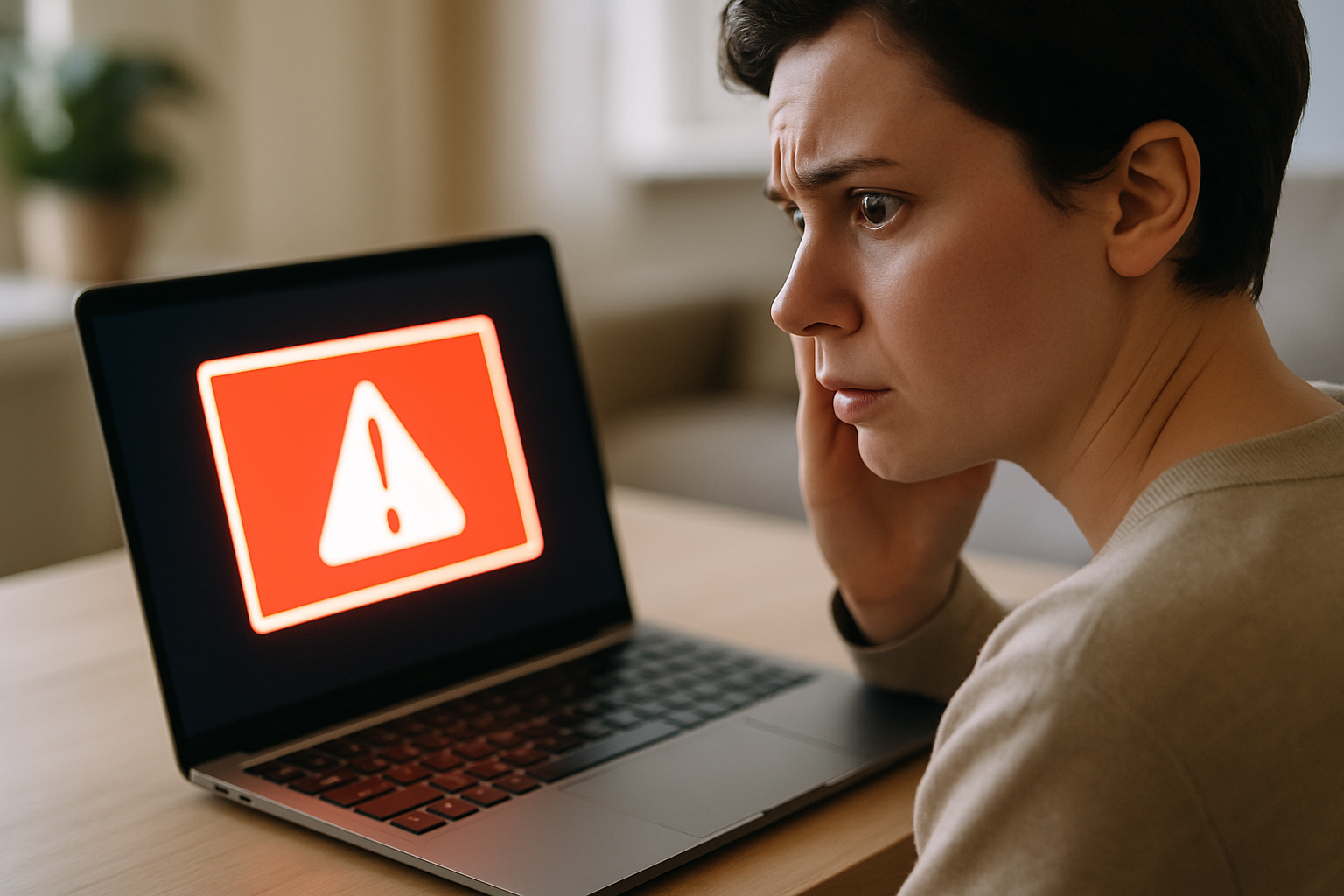
Every day, ordinary people stare at a screaming red browser window telling them their computer is infected and their files are about to be wiped. Most of them have no idea whether the warning is real. That split-second uncertainty is exactly what scammers are counting on. Asking yourself is this virus warning real is the right instinct — and with a short mental checklist, you can answer that question before you do anything else.
What a Fake Virus Warning Actually Looks Like
The classic version fills your entire screen. There is often a loud looping alarm sound. Bold red text tells you your device is compromised and you must act immediately. A phone number sits in the middle of the page, waiting for you to call it.
Here is the key thing to understand: this is a web page. Your browser is displaying it, the same way it displays any other website. Your operating system has not sent it. Windows has not sent it. Apple has not sent it. A website has.
The fake sender names are usually designed to sound official — “Microsoft Support”, “Apple Security Alert”, or invented brands like “SecureShield Pro”. The colours, fonts, and layout are copied from real company interfaces on purpose. The goal is to make you feel like the warning came from inside your machine.
The 10-Second Check: Five Things to Look at Right Now
Before you touch anything, run through these five points. They take about ten seconds combined.
- Look at the address bar. A genuine Windows or macOS security alert never comes from a website URL. If you see a web address at the top of your screen, you are looking at a web page, not a system message.
- Is there a phone number? Legitimate security software does not ask you to call a helpline. A phone number in a security warning is a scam signal, full stop.
- Can you close the window? If the page blocks your Back button or makes it hard to close, that is a manipulation tactic. Real safety tools do not trap you.
- Read the exact words. Phrases like “Your device will be destroyed in 5 minutes” are pressure tactics. Real alerts describe specific technical events; they do not threaten destruction on a countdown.
- Check your actual security software. Open Windows Defender, or whatever antivirus you have installed. If it is showing nothing, the browser pop-up is almost certainly fake.
Why These Warnings Feel So Convincing
Fear does something specific to the brain: it narrows your attention to the immediate threat and makes careful thinking feel like a luxury you cannot afford. Scammers know this. The flashing red screen, the alarm sound, the countdown timer — these are deliberate design choices made to trigger that fear response before you have time to think.
Countdown timers and urgent colour schemes are borrowed directly from legitimate security interfaces. Scammers study what real alerts look like and copy the visual language precisely. They update their templates regularly to match current operating system designs, so a fake Windows 11 alert today looks more convincing than one from five years ago.
This is also why the scheme keeps working at scale. Online systems have no reliable way to confirm that the person behind a website or a phone number is who they claim to be. There is no mechanism that ties an online identity to a real, accountable individual before the harm is done. So the response is almost always to chase fraudsters after the fact — after someone has already been frightened into calling, paying, or handing over access to their device. The missing foundation is identity accountability, and until that changes, the scam template will keep getting recycled.
What to Do If You Cannot Close the Window
Sometimes these pages are designed to resist being closed. Here is how to get out.
- On Windows: Press Alt + F4 to close the active window. If that does not work, press Ctrl + Shift + Esc to open Task Manager, find your browser in the list, and click “End Task”.
- On a Mac: Press Command + Option + Escape to open the Force Quit window, select your browser, and click Force Quit.
Do not call the number on the screen under any circumstances. Simply seeing the page does not infect your device — the danger comes from calling, downloading something, or making a payment. When you reopen your browser, choose the option to start a new session rather than restore your previous tabs. That stops the fake page from reloading automatically.
When to Actually Worry: Signs of a Genuine Security Alert
Real alerts behave differently. They appear in your operating system’s notification area — the small pop-up in the corner of your screen — or inside an antivirus application you already have installed. They do not appear as browser tabs.
Legitimate antivirus tools flag specific files or suspicious actions quietly. They give you options and time to respond. They do not threaten to destroy your files in five minutes, and they do not ask you to call anyone.
If you are genuinely unsure after running the five-point check above, open your security software manually and run a scan yourself. That puts you in control, rather than reacting to something designed to frighten you.
Protecting the People Around You
Older relatives and people with less internet experience are targeted most often, because the panic response is harder to override without knowing in advance that these scams exist. One conversation can change that.
Show this checklist to anyone who shares a device or uses the internet at home. Make it concrete: “If you ever see a big red warning with a phone number, close the browser and come get me before you do anything.” That one sentence could prevent a very expensive mistake.
Enable pop-up blocking in your browser as a basic preventive step. In Chrome, go to Settings > Privacy and Security > Site Settings > Pop-ups and redirects, and set it to blocked. Other browsers have the same option in similar locations.
Finally, scammers rely on embarrassment to keep victims silent. Anyone who nearly fell for one of these should be encouraged to talk about it — not because they did something wrong, but because telling the story is what warns the next person.
Frequently asked questions
Can a fake virus warning actually infect my computer just by appearing on screen?
No. A web page displaying a fake alert does not install anything on your device simply by being visible. The harm comes from what you do next: calling the number, downloading a file the page offers, or giving someone remote access to your machine. Close the browser and nothing has happened to your device.
How do I tell whether a warning is coming from my operating system or from a website?
Look at the address bar at the top of your screen. If you can see a web address (anything starting with http or https, or a string of letters and dots), the warning is coming from a website — not from Windows, macOS, or any installed software. Operating system alerts appear as small notifications in the corner of the screen or inside a specific application, never as a full browser window with a URL.
What should I do if someone in my family already called the number on a fake virus warning?
Act quickly. If they gave anyone remote access to the device, disconnect it from the internet immediately — unplug the ethernet cable or turn off Wi-Fi. Change passwords for any accounts that were open on the device, starting with email and banking. Contact the bank directly if any financial information was shared. Report the incident to your national consumer protection or cybercrime reporting service. Do not feel ashamed — these operations are professionally designed to deceive people.
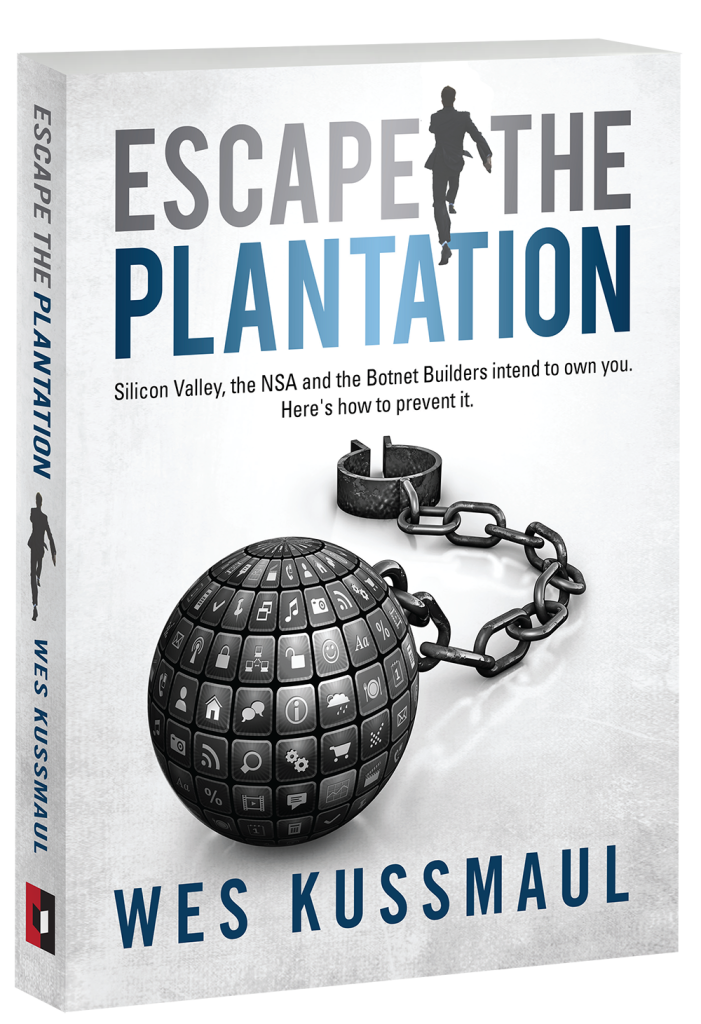
Mafiology tracks the tactics behind these schemes so you can recognise them early. Get our fraud-pattern alerts, plus a free copy of Wes Kussmaul’s Escape the Plantation on how scammers attack you and your family, and what can be done to stop them.